For schools and IT
One lab.
Each teacher’s classes.
School mode gives teachers their own profiles on a shared installation. Each class belongs to the teacher who made it.
Teachers and IT
Each teacher signs in with a short passcode. Their classes and results stay within that teacher’s profile.
The IT administrator manages the machine settings and cannot see student results. Teachers use their own profiles to work with classes and marking.
A sign-in ends after an idle period or when the browser closes, while a running exam carries on. The exam’s clock belongs to the student’s attempt.
A lost administrator passcode is reset on the machine itself. The reset is recorded in the log.
Prepare the testing stations
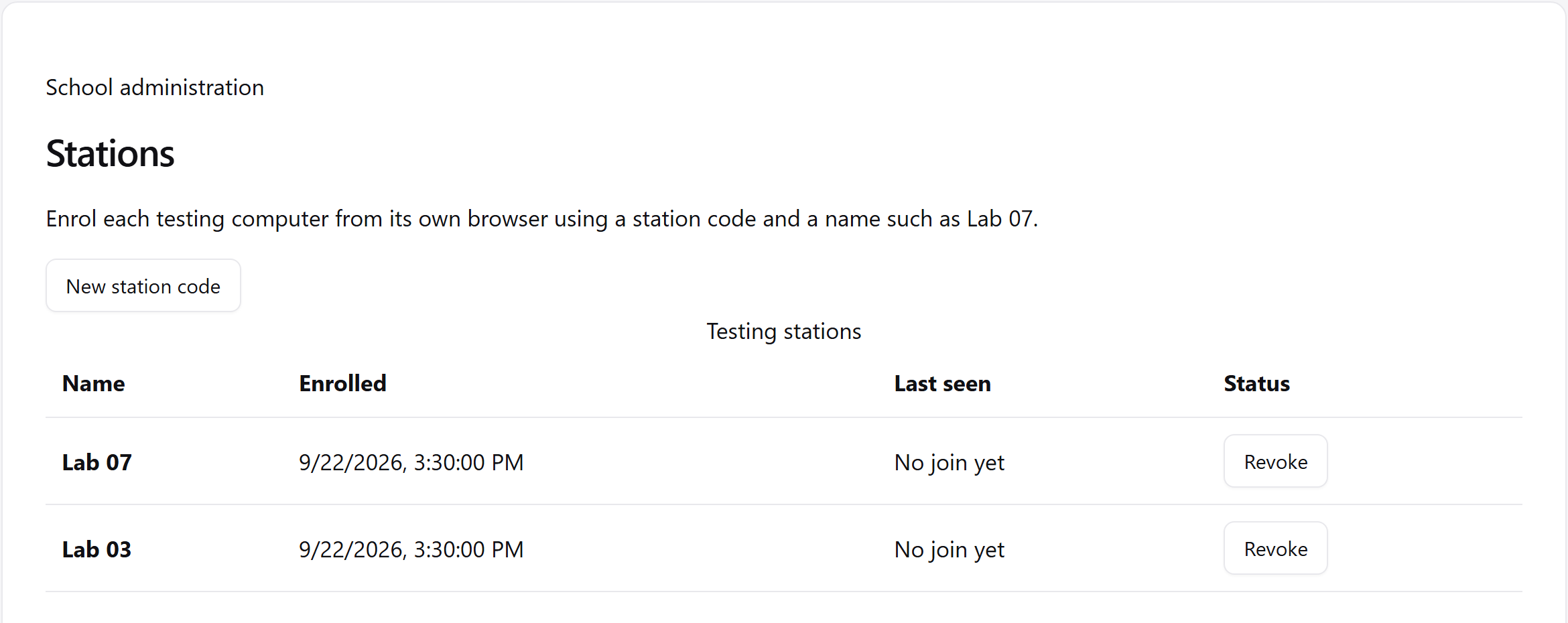
In IT administration, open Settings and choose Stations, then New station code. A code works once and expires after ten minutes. At each testing computer, open the student join address, choose the testing-station setup and enter the code.
Give each station a name such as Lab 07. Register each machine and browser profile again after a re-image or clearing that browser’s cookies. The station cookie identifies the computer; IT can revoke its registration.
School sittings have Stations only on by default. A teacher can turn it off for a sitting that should admit other devices.
Set kiosk mode on every station
Use the operating system’s kiosk setting to keep each station on the exam page, with notifications turned off. The guide names Assigned Access on Windows, kiosk or single-app mode on Chromebook, and Guided Access on iPad.
The board shows the station beside the student’s name and flags every departure: page hidden, unfocused or leaving full screen. Results record the count, total time and longest departure as observations for the teacher.
Keep a backup off the machine
Run Teacher Phase under its own Windows account, with disk encryption enabled and backups directed off the machine. Check that the backup destination is connected and the backup has completed.
Backup now makes and verifies an archive of the data. Restore shows a preview so you can confirm the data you intend to bring back.
Read the setup guide