Getting started
Your first class.
Your first exam.
Create a class, bring your exam and review it before the sitting. The installed guide takes you through each step.
Start the program and allow the room’s network
Choose Teacher Phase from Start; your browser opens and a Teacher Phase icon appears by the clock. Closing the browser leaves Teacher Phase running.
When Windows asks about Node.js JavaScript Runtime or node.exe, allow it on private networks. That is the program’s runtime, and the permission lets devices on the same local network join.
If that access was blocked, ask IT to allow the installed runtime on private networks. The setting is in Windows Security, under Firewall & network protection and Allow an app through firewall.
A first exam in six steps
-
Make a class
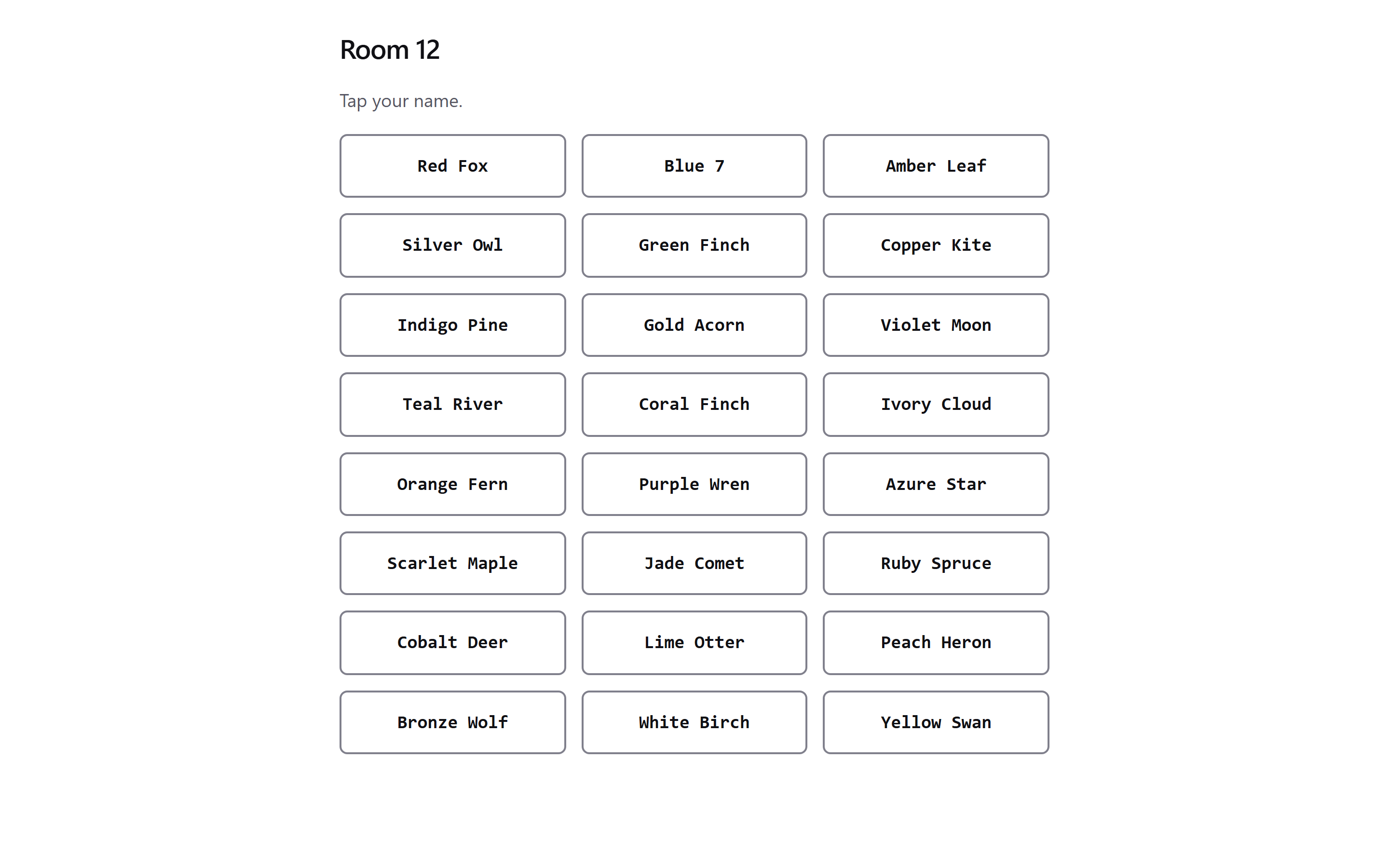
Create a class in Admin Phase and choose the names for its roster. Grade and year are optional.
Choosing names for your roster -
Bring your paper
Open Exams and import your exam file or enter it with the builder. This is where you bring the paper you want the class to take.
-
Review and seal
Check the questions, answer keys, points, pictures and passages. Approve the questions and seal the exam when it is ready.
-
Open the sitting
Select the class and open Start a test, then choose the sealed exam. Choose free movement with answers students can revise, or forward only with each answer final. Keep the paper’s order or give each student a different order; passage blocks stay together and results keep the paper’s numbering. Create the test and open its sitting.
-
Invite the class
Open Status & join, then Project join screen, for the address and QR code. Students on the same network join with the class code and the names you give them.
-
Follow through to results
Students see one question at a time. With free movement, Questions opens the list, Come back to this marks work to revisit, and Check and hand in leads to handing in. Answers can change until Hand in; forward only makes each answer final as students go.
Keep Teacher Phase running, with its icon by the clock, and follow the sitting from your class. To collect unfinished exams, choose Close this window, then End their tests, which keeps saved answers. Pausing instead lets students resume in a makeup sitting. Open the class’s Results in Assessment Phase.
Keep a backup
Open Data & backup in Settings and choose Backup now to make a verified archive. Keep a copy off the computer and check that the destination is connected and the backup completed.
Move to another computer
Take a verified backup archive to the other computer. In Teacher Phase’s Data & backup, choose Restore, select the archive and confirm the preview of the data you intend to restore.
Restore keeps the existing data in a safety copy and stops the server. Start Teacher Phase again and check your classes, exams and results.
Preparing a school lab